
Overview
Once connected, Resova can send the following information to your Google Calendar:
- Bookings, including transactional and customer details
- Blocked timeslots
- Closed availability periods
This allows you to view your Resova activity in Google Calendar or any calendar app connected to your Google account.
Please note: Google Calendar Sync currently supports one Google Calendar per Resova account.
Before You Begin
To use this integration, you’ll need a Google account.
If you don’t already have one, you can sign up for free here:
Google Calendar
To begin setup, go to:
https://app.resova.us/integrations/all
Then locate Google Calendar Sync.
How to Connect Google Calendar
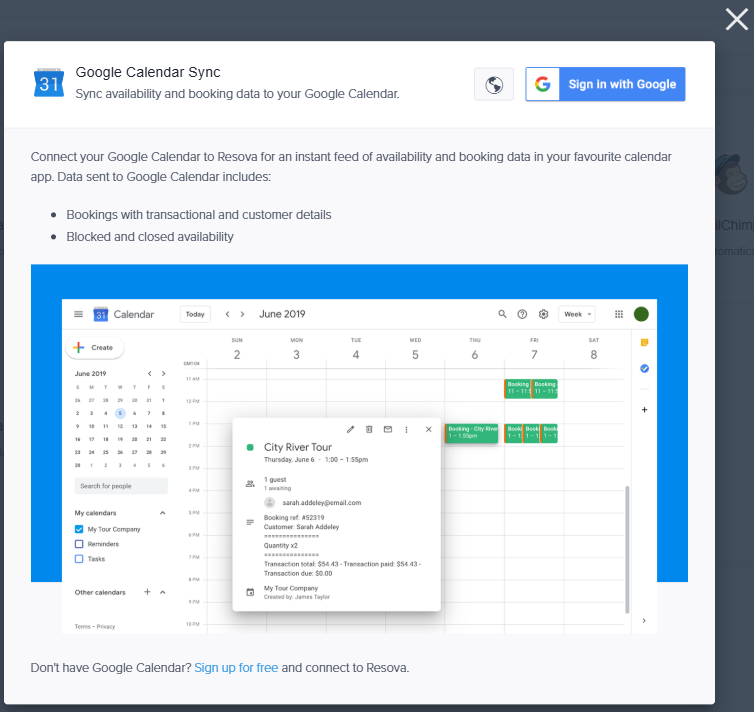
Step 1: Click Sign in with Google
From the Google Calendar Sync integration page, click the Sign in with Google button.
Step 2: Select Your Google Account
Choose the Google account you would like to connect to Resova.
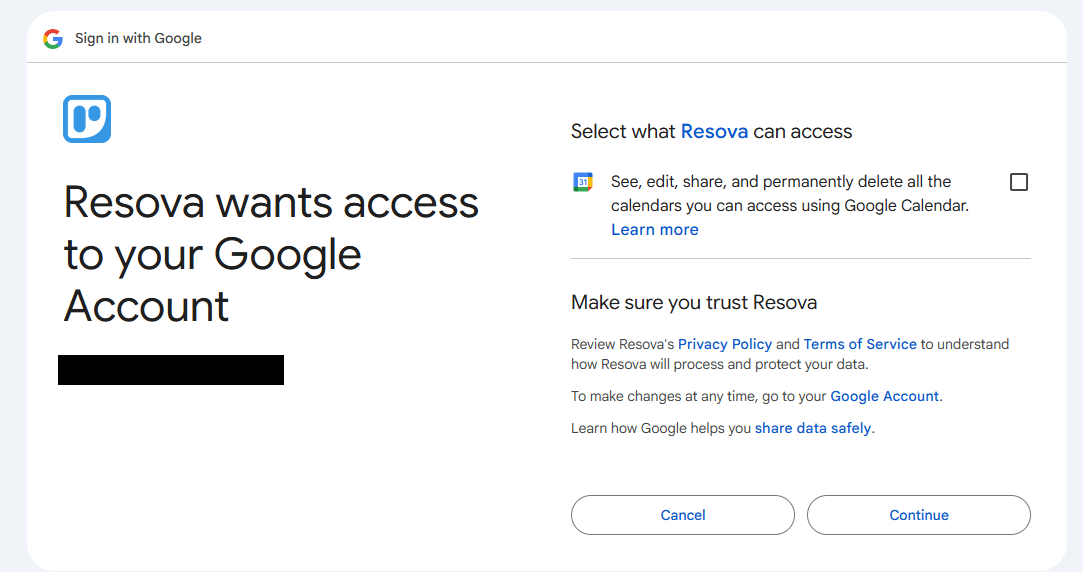
Step 3: Allow Permissions
Google will prompt you to allow access so Resova can sync booking and availability data to your calendar.
Approve the requested permissions to continue.
This access is required for Resova to create and manage synced calendar events in your selected Google Calendar.
Step 4: Select a Calendar
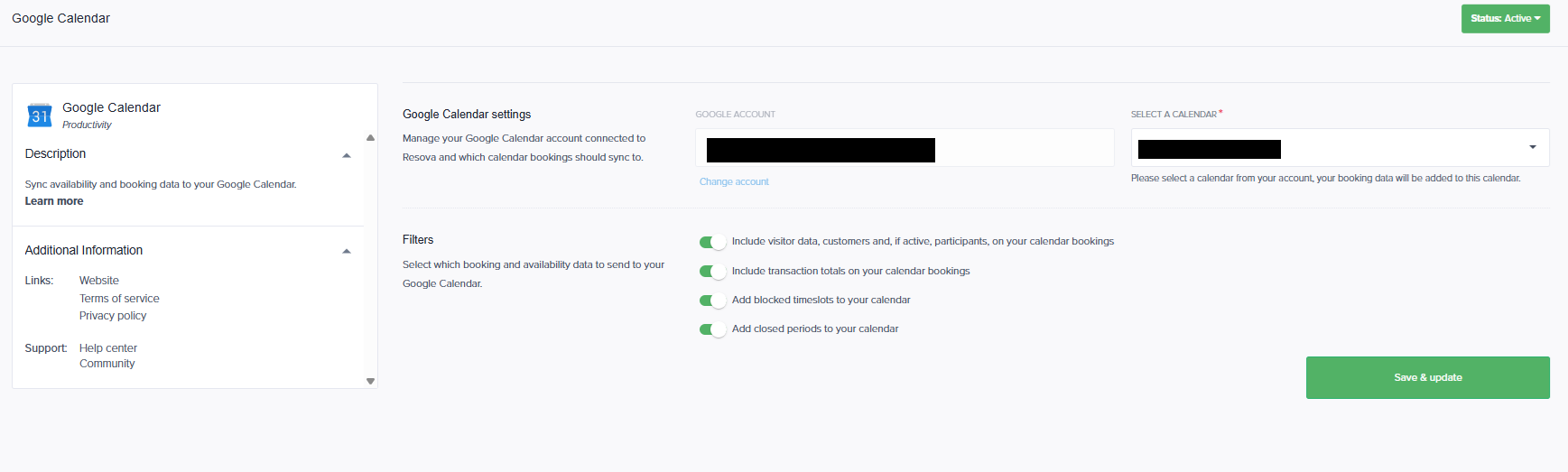
After connecting your Google account, Resova will prompt you to select which calendar from your Google account you would like to use.
Once selected, supported booking and availability data will begin syncing to that calendar.
Available Filters
You can control what information Resova sends to your Google Calendar by enabling or disabling the available filters.
Booking & Availability Filters
Use the toggles to choose which details are included:
- Include visitor data
Adds customer information and, if active, participant information to synced booking events - Include transaction totals
Adds transaction totals to synced booking events - Add blocked timeslots
Adds blocked availability periods to your calendar - Add closed periods
Adds closed availability periods to your calendar
These options allow you to customize how much booking and operational detail appears on your Google Calendar.
What Gets Synced
Depending on your selected filters, Resova can sync:
- Booking details
- Customer / visitor details
- Participant details (if enabled)
- Transaction totals
- Blocked timeslots
- Closed periods
This can help you manage your calendar more easily and keep your business schedule visible in one place.
Important Information
Please note: Once Google Calendar Sync is enabled, newly created bookings will begin syncing to the selected calendar moving forward.
Booking Sync Behavior
When a new booking is created, the system automatically:
- Syncs the event to the business’s connected Google Calendar
- Sends a calendar invite email based on Google Calendar behavior
- May display the event details on the guest’s personal calendar, depending on how their calendar account handles invites
Existing / Older Bookings
Bookings created before Google Calendar Sync was enabled will not be added retroactively.
Only bookings created after activation will sync properly to the selected Google Calendar.
Frequently Asked Questions
Will past bookings sync to my calendar after I connect it?
No. Google Calendar Sync does not backfill historical bookings.
Only bookings created after the integration is enabled will sync moving forward.
Can I connect more than one Google Calendar?
No. At this time, Resova supports syncing to one Google Calendar per account.
Will my guests receive calendar invites?
Yes. Once this integration is active, new bookings may trigger a calendar invite email based on Google Calendar behavior.
This may also cause the booking to appear on the guest’s personal calendar depending on their calendar settings.
Can I control what gets added to the calendar?
Yes. You can use the available filters to choose which booking and availability details are sent to Google Calendar.
Need Help?
If you run into any issues connecting your calendar or syncing events, please reach out to our Support Team and we’ll be happy to help.