
Step 1 – Enable Deposits in Payment Settings
- Go to Settings
- Select Payment Settings
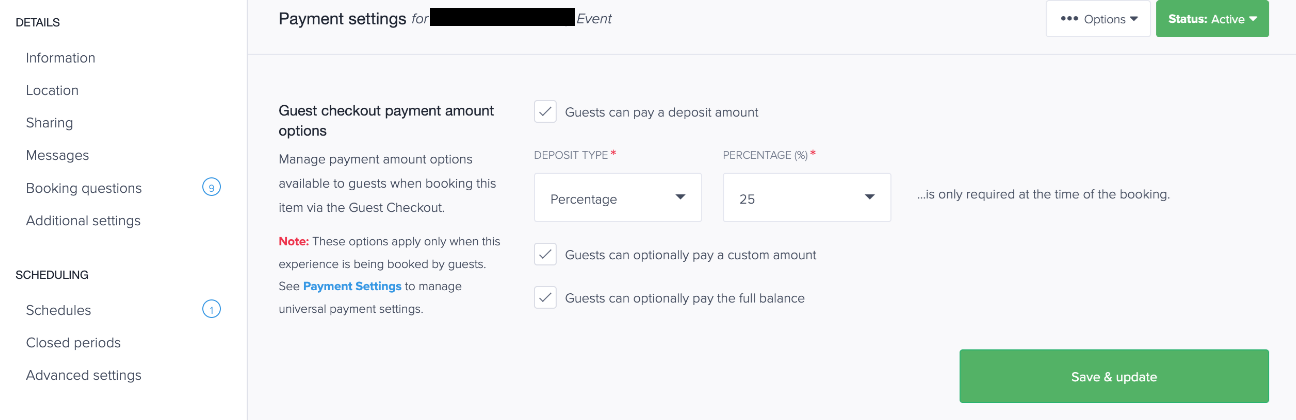
- Locate Guest checkout payment amount options
- Enable:
- Guests can pay a deposit amount
- Set:
- Deposit Type: Percentage
- Percentage: 100%
Important
This step is required.
If this is not enabled, deposits will not appear at checkout, even if configured on items.
Step 2 – Set Deposit Amount on an Item
- Go to Items / Experiences
- Select the item you want to configure
- Set the Deposit Amount (percentage or fixed amount)
Example
- 20% > Guest pays 20% at booking
- 50% > Guest pays half upfront
How It Works
- Global setting (Step 1) > enables deposit functionality
- Item setting (Step 2) > controls how much is charged
If no deposit is set on an item:
- The system will require full payment
Optional Settings (Checkout Experience)
You may also enable:
- Guests can optionally pay a custom amount
- Guests can optionally pay the full balance
These allow guests to choose how much they want to pay at checkout.
Troubleshooting
Deposits not showing at checkout
- Confirm “Guests can pay a deposit amount” is enabled globally
- Verify the item has a deposit set
Guests can only pay full amount
- Item likely does not have a deposit configured
- global deposit setting is disabled