
How to Enable Custom Gift Voucher Amounts in Resova
How to let guests choose their own gift voucher amount
Custom gift voucher amounts let guests type in how much they’d like to give, instead of picking from fixed values. You choose which voucher types allow it and set the lowest and highest amounts, so you stay in control of what’s sold. Custom amounts are off by default, so nothing changes until you switch them on.
Before You Start
Make sure:
✅ Gift vouchers are enabled for your account and included in your plan.
✅ You have at least one voucher type, or are ready to create one.
✅ You have permission to manage inventory.
How to Enable Custom Amounts
- Navigate to:Inventory > Gift vouchers > Voucher types
- Select an existing voucher or create a new one:
- For an existing gift voucher: Click the gear icon on the voucher and select Manage voucher type.
- For a new gift voucher: Click the blue + icon in the upper-right corner to create a new voucher, and go to Step 3.
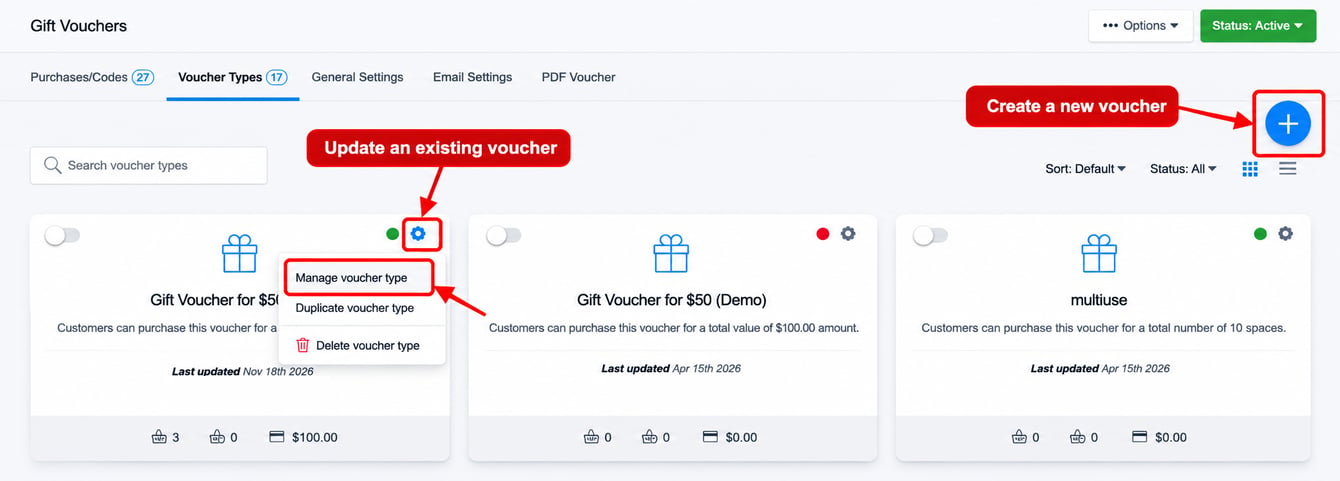
- Under Purchase Settings, locate the Custom amount section and enable ✅ Allow customers to enter a custom amount for this voucher type.
- Enter your minimum and maximum amounts.
- Whole numbers between 5 and 500
- The maximum must be the same as or higher than the minimum
- For a new custom-amount setup, the fields initially contain 25 and 500. You can change them to any whole-number range between 5 and 500, provided the maximum is at least the minimum.

- Click Save & Update, and make sure the voucher type is active so it shows on your booking site.
Review your voucher type's redemption and other settings separately when configuring it.
What Guests See
On your gift voucher page, the voucher type shows Custom amount instead of a price. When a guest selects it, an amount box appears showing your range.
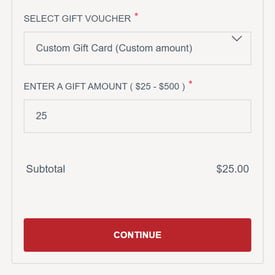
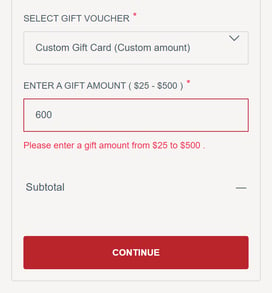
Note: The guest screenshots show a 25–500 test configuration. The Admin screenshot earlier in this article shows a separate 5–500 test configuration.
- The box starts at your minimum and accepts whole numbers only.
- If the amount is outside your range, the guest sees an error and can't continue until it's fixed.
- Each custom-amount voucher selection has a quantity of one.
- The gift voucher email shows the voucher's value and code. If PDF vouchers are enabled, it also includes an option to download the voucher.
How Redemption Works
A custom-amount voucher works like a balance:
- It's worth exactly the amount the guest chose.
- If the voucher type allows multiple uses, the remaining balance can be redeemed across bookings until it runs out or the voucher expires. A voucher type configured for one-time use can only be redeemed once.
- If the guest used a discount code when buying it, they pay less but the voucher keeps its full value.
⚠️ Important: 500 Limit
The maximum of 500 helps protect your account from card fraud, and it can't be raised.
Need to sell a higher value?
- Create a fixed-price voucher type for that amount, or
- If your account offers a custom gift amount option in the point of sale, you may use that separate workflow. Availability depends on your account's settings.
The range is 5 to 500 in whatever currency your account uses.
(Optional) Hide the Gift Tile From Your Item List
Some venues prefer to sell gift vouchers only from their dedicated gift voucher page.
- Go to Settings > Booking Site Settings > Booking Site Appearance > Options.
- Under Gift vouchers, switch off Show the gift voucher tile in the item list.
The tile disappears from grid, list and availability layouts, including embedded booking sites. Guests can still buy vouchers from your gift voucher page.
Troubleshooting
1. I can't see the Custom amount section
Open Inventory > Gift vouchers > Voucher types, select Manage voucher type, and look under Purchase Settings > Custom amount. You also need permission to manage inventory.
2. A guest says the voucher is "no longer available to book"
Check that the voucher type is active. The booking site may display:
"Sorry, this gift voucher is no longer available to book."
3. Guests can't enter amounts like 25.50
This is expected. Custom amounts accept whole numbers only.
Best Practice Recommendations
| Setting | Recommendation |
|---|---|
| Voucher type | ✅ Create a dedicated "Gift voucher, any amount" type |
| Minimum / maximum | ✅ Choose whole-number limits from 5 to 500 (the fields initially show 25 and 500) |
| Fixed-price vouchers | ✅ Keep them alongside custom amounts |
| Voucher type status | ✅ Check it's active after saving |
Summary
To let guests choose their gift voucher amount:
- Open Inventory > Gift vouchers > Voucher types.
- Enable custom amounts on the voucher type you want.
- Set a minimum and maximum between 5 and 500.
- Save and check the voucher type is active.
Need Help?
If you've completed the steps above and custom amounts still aren't showing, please contact support with:
- Your booking page URL
- The name of the voucher type
- Details of the issue encountered
Our team will check your acco