
Custom gift voucher amounts let guests type in how much they’d like to give, instead of picking from fixed values. You choose which voucher types allow it and set the lowest and highest amounts, so you stay in control of what’s sold. Custom amounts are off by default, so nothing changes until you switch them on.
Before You Start
Make sure:
✅ Gift vouchers are enabled for your account and included in your plan.✅ You have at least one voucher type, or are ready to create one.
✅ You have permission to manage inventory.
How to Enable Custom Amounts
- Navigate to:Inventory > Gift vouchers > Voucher types
- Select an existing voucher or create a new one:
- For an existing gift voucher: Click the gear icon on the voucher and select Manage voucher type.
- For a new gift voucher: Click the blue + icon in the upper-right corner to create a new voucher, and go to Step 3.
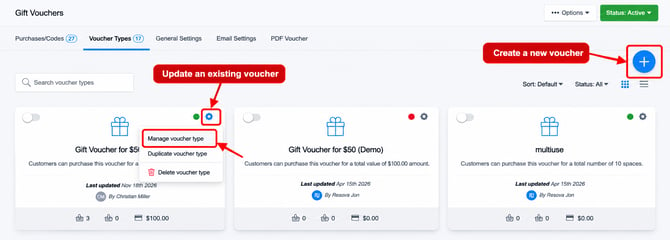 Managing an existing voucher or creating a new one
- Under Purchase Settings, locate the Custom amount section and enable ✅ Allow customers to enter a custom amount for this voucher type.
- Enter your minimum and maximum amounts.
- Whole numbers between 5 and 500
- The maximum must be the same as or higher than the minimum
- We suggest 25 and 500 as a starting point
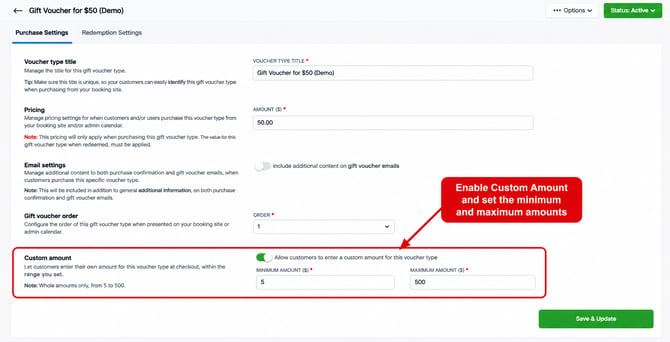 Enabling custom amounts and setting the minimum and maximum values
- Click Save & Update, and make sure the voucher type is active so it shows on your booking site.
All other voucher type settings still apply as normal, including eligible items, date and day restrictions, expiry, and tax or fee exemptions.
What Guests See
On your gift voucher page, the voucher type shows Custom amount instead of a price. When a guest selects it, an amount box appears showing your range.
- The box starts at your minimum and accepts whole numbers only
- If the amount is outside your range, the guest sees an error and can’t continue until it’s fixed
- Each purchase is one voucher. To buy two, the guest adds another
- The confirmation email shows the amount paid, the voucher code and a link to download the voucher
How Redemption Works
A custom-amount voucher works like a balance:
- It’s worth exactly the amount the guest chose
- It can be used across more than one booking until the balance runs out or it expires
- If the guest used a discount code when buying it, they pay less but the voucher keeps its full value
⚠️ Important: 500 Limit
The maximum of 500 helps protect your account from card fraud, and it can’t be raised.
Need to sell a higher value?
- Create a fixed-price voucher type for that amount, or
- Sell the voucher through your point of sale, where staff can enter any amount (including decimals)
The range is 5 to 500 in whatever currency your account uses.
(Optional) Hide the Gift Tile From Your Item List
Some venues prefer to sell gift vouchers only from their dedicated gift voucher page.
- Go to your booking site appearance settings
- Under Additional options, disable: Show the gift voucher tile in the item list
The tile disappears from grid, list and availability layouts, including embedded booking sites. Guests can still buy vouchers from your gift voucher page.
Troubleshooting
1. I can’t see the Custom amount section
- Make sure you’re on Manage voucher type, not the list of sold gift vouchers
2. A guest says the voucher is “no longer available to book”
- Check the voucher type is still active
3. Guests can’t enter amounts like 25.50
- This is expected. Custom amounts accept whole numbers only
Best Practice Recommendations
| Setting | Recommendation |
|---|---|
| Voucher type | ✅ Create a dedicated “Gift voucher, any amount” type |
| Minimum / maximum | ✅ Start with 25 and 500 |
| Fixed-price vouchers | ✅ Keep them alongside custom amounts |
| Voucher type status | ✅ Check it’s active after saving |
Summary
To let guests choose their gift voucher amount:
- Open Inventory > Gift vouchers > Voucher types
- Enable custom amounts on the voucher type you want
- Set a minimum and maximum between 5 and 500
- Save and check the voucher type is active
Need Help?
If you’ve completed the steps above and custom amounts still aren’t showing, please contact support with:
- Your booking page URL
- The name of the voucher type
- Details of the issue encountered
Our team will check your account.