
How to Enable Apple Pay
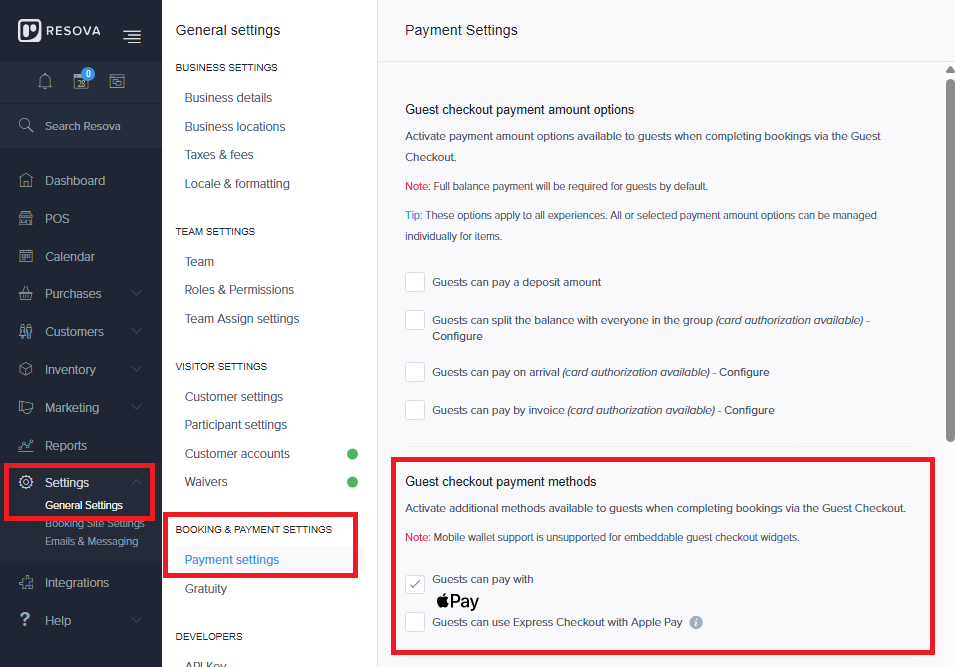
- Navigate to:
Settings > General Settings > Payment Settings
Or go directly here:
https://app.resova.us/settings/general/payments - Scroll to the Guest checkout payment methods section.
- Enable:
- ✅ Guests can pay with Apple Pay
- (Optional) Enable:
- ☐ Guests can use Express Checkout with Apple Pay
- Save your changes.
⚠️ Important: Express Checkout Warning
When enabling Express Checkout with Apple Pay, guests can complete bookings faster, but with a tradeoff.
Express Checkout may not collect all required customer information
This can include:
- Required customer fields
- Custom questions
- Participant details
Recommendation
- ✅ Enable Apple Pay
- ⚠️ Disable Express Checkout if you rely on collecting full customer details during checkout
Apple Pay Requirements (SpeedPay)
If you do not see the Apple Pay option, or it is not working as expected:
You must be using SpeedPay as your payment processor.
How to get SpeedPay
Sign up here:
https://get.resova.com/speedpay/
Once signed up:
- Your account must be configured for Apple Pay
- Our team will need to enable Apple Pay on the backend (developer activation required)
Troubleshooting Apple Pay Issues
If Apple Pay is enabled but guests are unable to complete transactions, check the following:
1. Account & Site URL Formatting
Your site and account configuration must use all lowercase values.
Example:
- ✅
https://yourlocationname.resova.com - ❌ Mixed or uppercase URLs can cause Apple Pay to fail
2. SpeedPay Activation
- Confirm your SpeedPay account is fully set up
- Ensure Apple Pay has been enabled by our team
3. Device Compatibility
- Apple Pay only appears on Apple devices.
- The option to pay with Apple Pay will not be visible if not on a supported device
4. Embedded Checkout Limitations
- Apple Pay will not function properly in embedded widgets
- Use Resova's hosted booking page for best results
Best Practice Recommendations
| Setting | Recommendation |
|---|---|
| Apple Pay | ✅ Enable |
| Express Checkout | ⚠️ Disable (if customer data is required) |
| Payment Processor | ✅ Use SpeedPay |
Summary
To successfully use Apple Pay in Resova:
- Enable it in Payment Settings
- Ensure you are using SpeedPay
- Have our team enable it on your account
- Keep your site/account values lowercase
- Avoid Express Checkout if you need full customer data
Need Help?
If you’ve completed the steps above and Apple Pay is still not working, please contact support with:
- Your booking page URL
- A screenshot of your Payment Settings
- Details of the issue encountered
Our team will assist with verification and activation.